

NOROOT FIREWALL - CONTROL YOUR APPS INTERNET ACCESS
NOROOT FIREWALL - CONTROL YOUR APPS INTERNET ACCESS

 Have you ever wanted more control over your device and what apps access the Internet? Only those who have 'rooted' their phone or tablet could do this bef
ore. Rooting your device can void your warranty, and the process can be nerve-wracking for the uninitiated. This app is a firewall, much like the one you have on an average PC. This capability wasn't available to most of us. Now it is with NoRoot Firewall.
The app works by using your phone or tablet VPN (Virtual Private Network) feature. With that, all Internet traffic will flow through the app so any desired filtering or blocking can be applied. Don't be concerned that a 3rd party now has access to all your data. The VPN exists on your device only, and no data is sent to external servers.
Before proceeding, it's worth mentioning that this app is probably better suited to the Android enthusiast. Those who are security conscious or just want more control of what happens on their device may find this app to be just what they are looking for.
A typical use for NoRoot Firewall is to block unwanted apps from accessing the Internet. These apps, sometimes called bloatware, are supplied with your phone or tablet by the manufacturer or carrier. For example, Flipboard on some Samsung devices. It can't be uninstalled or disabled and constantly accesses the Internet to download news stories whether you like it or not.
Now it's a simple matter to block the app so it doesn't chew up your data plan. Another example would be a game which has intrusive ads that interfere with game play, or some other app with ridiculous permissions you are suspicious about. Block them. If any undesirable side effects occur after you block something, you can easily restore Internet access to the specific app.
There aren't any settings as such, except if NoRoot Firewall should start at device boot-up. One annoyance is a dialog box you need to agree with every time the app starts, and I couldn't find a way to bypass that. At least you know it's running. The app has various tabs at the top—Home, Pending Access, Apps, Global Filters and Access Log.
After running it for a while, what you will see first is a notification that something has requested Internet access. A tap on that will take you to the pending access screen. You will find the requesting app's name and 'Allow' and 'Deny' buttons. You'll get a lot of these notifications to start with but there's a quicker way to arrange your blocks.
On the Apps tab is a full list of all your apps and next to each are two check boxes. One box for Wifi and the other for cellular data. This means you can block individual apps from accessing the Internet while you are using mobile data but allow them on your Wifi. Some money saving possibilities exist here. If you deny access to some apps and you want to reverse the change, this screen is where you do it.
Each check box has three possible states—a tick for allow, a cross for deny, or blank if the relevant app has yet to be determined by you. It's easier to just leave the ones you haven't decided about as blank.
Be careful what you block, like Gmail, Android system apps, browsers and others that simply can't function without Internet access. If you block something by mistake, simply allow it access again.
Don't worry if you see in your device data use setting that NoRoot Firewall has used a big chunk of data. It hasn't. Since all Internet access is funneled through the firewall, that's what shows.
For the more technically inclined users, the Log tab shows every app that accesses the Internet with the name of the site, its IP address and port. You could use the firewall to just block ads, but keep in mind that developers rely on advertising revenue to support their development and keep their apps free.
You can create custom rules/filters in the Global Filters tab. This will make the power users happy. Host and domain name filtering can be set up, but for most users, simple blocking will be enough.
The resource use and memory requirements are low. There was no noticeable impact on Internet access speed.
The only annoyance is the pop-up dialog box when you start your device as mentioned earlier, but that is an Android system thing. They obviously don't like consumers having control over their devices, so they try to scare them into not proceeding. As mentioned above, the VPN is within your device and no data leaves from the app.
The peace of mind you get knowing you now have good control over what apps can access the Internet makes that a small price to pay. It makes using your device a much nicer experience and more secure.
NoRoot Firewall — Free Mobile App of the Week
For Android
Size: 504 KB

Size: 504 KB

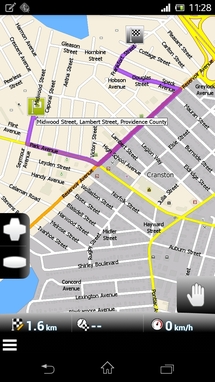
 While navigating, the app shows 3 slots at the bottom of the screen; each can show different information and you can choose among 15 different options ranging from your current altitude, to the time to the next maneuver, your current speed, or the distance left to your destination, among others.